Navigation & settings
How the sidebar, the Settings hub, the POS launchers and the command palette fit together - and how the layout changes per business type.
The app follows one rule, and once you know it you can always guess where something lives:
The sidebar holds what you do repeatedly. Settings holds what you set once.
A cashier ringing up sales, a chef firing tickets and a storekeeper receiving a delivery all live in the sidebar. Tax rates, barcode formats, units of measure and SLA policies all live in Settings - you touch them during setup and then rarely again.
Nothing was removed. Every page that left the sidebar is still one click
away in the Settings hub, and still instantly reachable with the
command palette (⌘K / Ctrl+K). If you preferred typing your way
around, nothing changed for you at all.
The sidebar

Reading top to bottom:
- Workspace and namespace switchers - which business you're working in.
- The POS launcher - a pinned button for the shops and kitchens that have one (see below).
- Overview - your dashboard and the handful of everyday pages.
- Work sections - grouped by the job you're doing, not by the module that implements it.
Sections you don't have access to never appear. What you see depends on three things: your role, the modules enabled for your workspace, and your workspace's business type.
Collapsing sections
Every section header can be clicked to fold it away. Your choice is remembered on that device, so you can keep only the sections you actually use open - a stock controller who never touches cases can fold Support management once and never scroll past it again.

Overview never collapses - it's the way back to your dashboard and to Settings.
Collapsing is per device, not per account. Folding a section on your phone doesn't fold it on the till.
Opening the POS
Shops and restaurants run their day in a dedicated point-of-sale app - a separate, touch-first screen that installs to a home screen and keeps working when the network doesn't. It used to be reachable only from a card buried in your personal settings page. It's now a pinned button at the top of the sidebar, and it's also the first thing on the Settings hub.
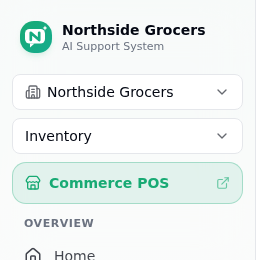
| Button | Opens | Appears when |
|---|---|---|
| Commerce POS | The retail till, business day, customers, shift settlement | The Retail POS module is on |
| Kitchen POS | The counter, KDS, floor plan, day loop, 86 board | The Food module is on |
Both open in their own app, so you'll see a full page load rather than an instant switch. That's expected - they're built to run standalone on a terminal.
The Settings hub
/settings used to be your account page. It's now the map of everything
you configure, with your account at the top.
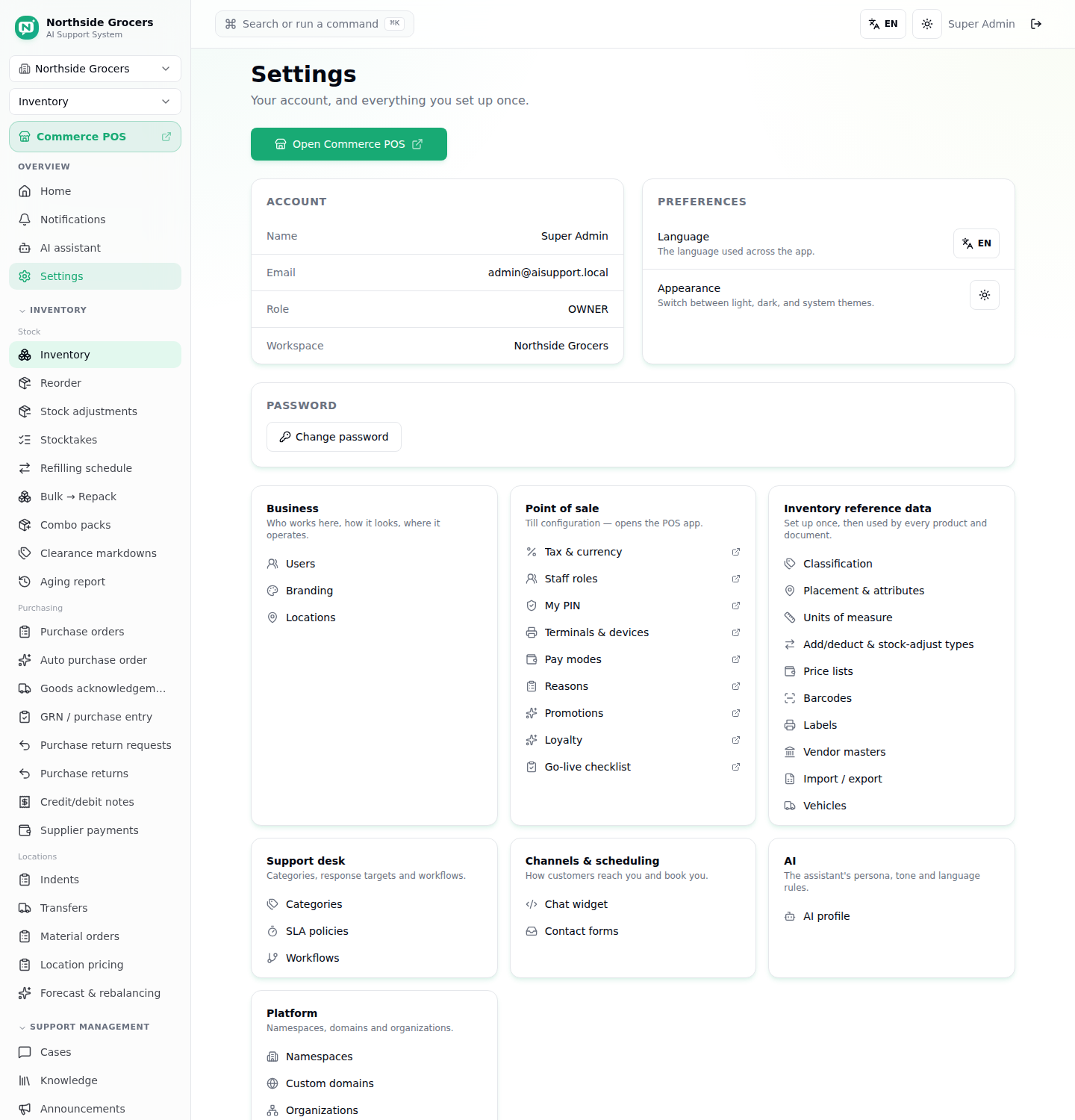
The page is built in three bands:
- The POS launchers - the same buttons as the sidebar, because this is where people look for "open the till".
- Account and preferences - your name, email, role, language, theme and password. Everyone sees this band.
- Configuration groups - one card per area, each listing the pages that set it up.
What's in each group
| Group | What you set there | Who sees it |
|---|---|---|
| Business | Users, branding, locations, companies | Admin, Owner |
| Point of sale | Tax & currency, staff roles, PINs, terminals, pay modes, reasons, promotions, loyalty, go-live | Admin, Owner |
| Food & kitchen | Currency, tax, guest ordering, QR policy, kitchen go-live | Admin, Owner |
| Inventory reference data | Classification, placement, units of measure, add/deduct & stock-adjust types, price lists, barcodes, labels, vendor masters, import/export, vehicles | Agent and above |
| Support desk | Categories, SLA policies, workflows | Admin, Owner |
| Channels & scheduling | Chat widget, contact forms, booking setup, floor setup | Admin, Owner |
| AI | The workspace AI profile | Admin, Owner |
| Platform | Namespaces, custom domains, organisations | Super admin |
Groups you have no access to are hidden entirely rather than shown greyed out, so the hub never offers you a page that would refuse you.
Inventory reference data is open to Agents, not just Admins. Setting up a new unit of measure or a barcode format is routine stock work, and blocking it behind an Owner login was slowing real warehouses down.
The command palette
Press ⌘K (Mac) or Ctrl+K (Windows/Linux) anywhere in the app to jump to
any page by typing a few letters.
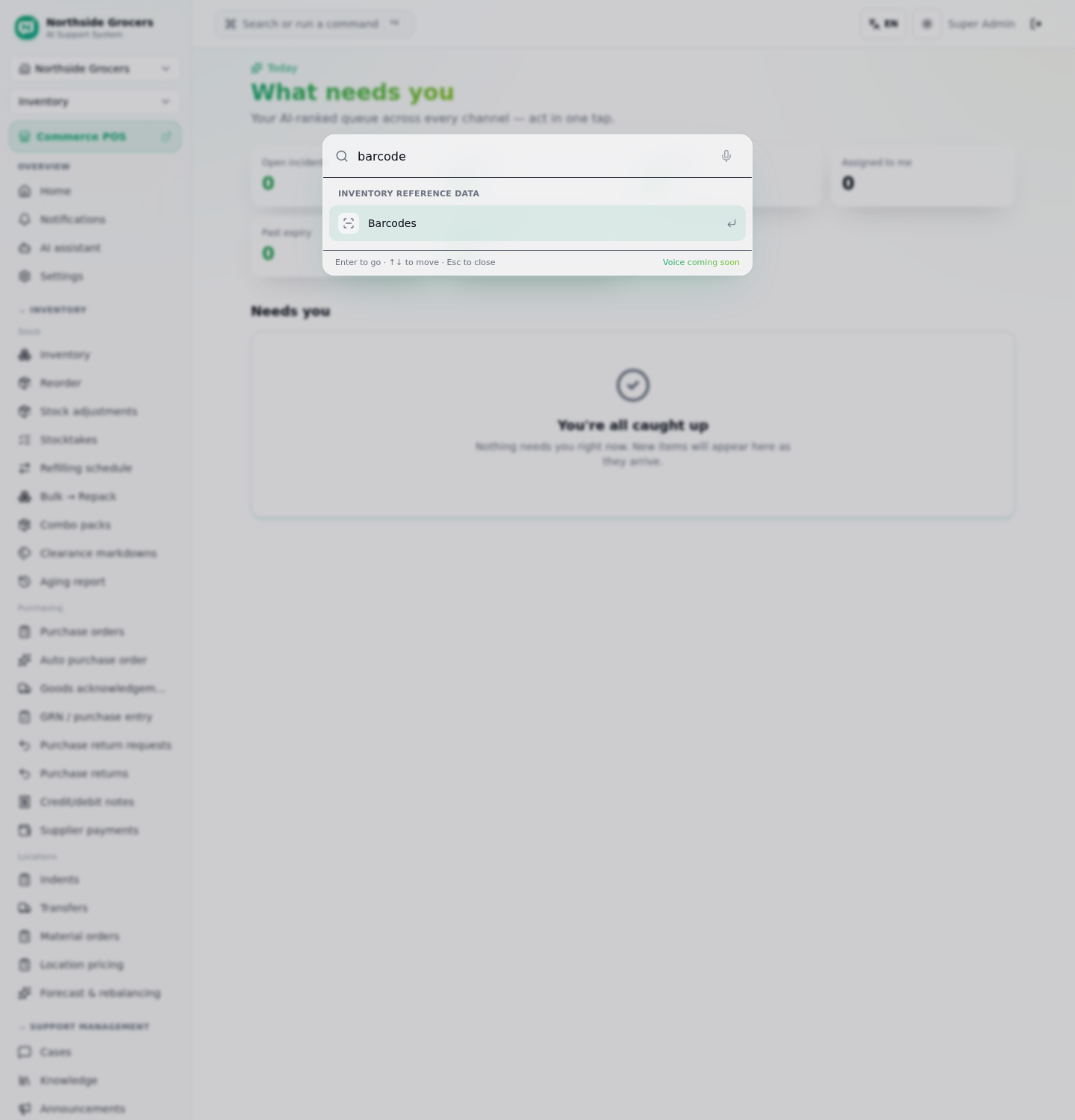
The palette indexes both the sidebar and every page in the Settings hub. That's deliberate: pages that moved out of the sidebar had to stay just as fast to reach for anyone who navigates by keyboard.
Business types
Your workspace has a business type that decides which shell you land in and what the sidebar leads with. A platform administrator sets it when creating the workspace (see Super admin manual).
| Business type | Lands on | Sidebar leads with |
|---|---|---|
| Support desk | Dashboard | Cases, knowledge, announcements |
| Kitchen / restaurant | Kitchen home | Service, kitchen, suppliers & money |
| Floor / workforce | Floor plan | Shifts, staff, floor operations |
| Retail / shop | Inventory home | Stock, purchasing, locations |
The same app, same rules, a restaurant instead of a shop - note the second POS launcher and the Food section split into service, stock, kitchen custody, and suppliers & money:

Retail is a business type in its own right. Shops used to be created as "support desk" workspaces and landed in a helpdesk shell with their stock pages buried several sections down. Picking Retail now opens directly on the inventory home, themes the app for a shop, and pre-selects the Inventory, Retail POS and Contact forms modules.
Changing a workspace's business type never changes what anyone can access - access always comes from the modules enabled for the workspace and the role you hold in it. The business type only decides what you see first.
Quick reference: where did it go?
| Looking for | Now at |
|---|---|
| Open the till / kitchen | Sidebar, pinned at the top - also on Settings |
| Units, barcodes, labels, classification | Settings → Inventory reference data |
| Tax, pay modes, terminals, promotions | Settings → Point of sale |
| Users, branding, locations | Settings → Business |
| Categories, SLA policies, workflows | Settings → Support desk |
| Chat widget, contact forms, booking | Settings → Channels & scheduling |
| Leads inbox (submitted contact forms) | Sidebar → Leads |
| Anything at all | ⌘K |